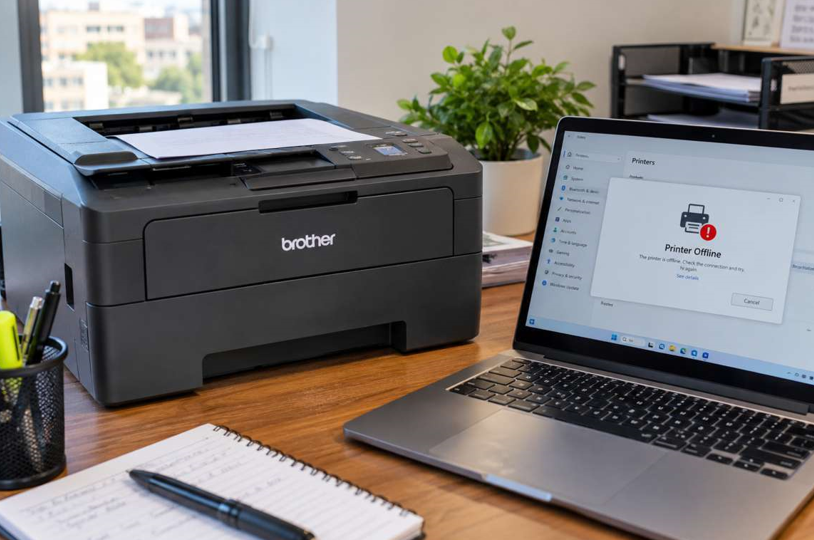
You hit print, walk over to collect your pages, and nothing is there. Then you spot the message on your screen: “Brother printer offline.” The printer is switched on and the lights are glowing, so what’s going on?
This is one of the most common issues Brother owners face, and it’s rarely a sign that the printer is broken. Usually the computer and the printer have simply stopped talking to each other. This guide explains why it happens and how to fix it, step by step.
What Does “Brother Printer Offline” Actually Mean?
When your computer shows a Brother printer as offline, it can’t reach the printer at that moment. The printer might be perfectly healthy. The break is in the communication between the two devices, and it can come from the network, your computer’s settings, or the printer itself.
Common Reasons a Brother Printer Goes Offline
- Wi-Fi problems: A weak signal, a router restart, or a changed password can drop the connection.
- A new IP address: Routers sometimes assign the printer a different IP address, so the computer keeps looking in the wrong place.
- Outdated or corrupted drivers: After a Windows or macOS update, an old driver may stop working properly.
- Sleep or power-saving mode: The printer may go into deep sleep and fail to wake up.
- A stuck print queue: One failed job can block everything behind it.
- Wrong port or settings: The printer may be set to “Use Printer Offline” without you knowing.
Step-by-Step Fixes for a Brother Printer Offline
1. Restart Everything in the Right Order
It sounds too simple, but it solves a surprising number of cases. Switch off the printer, router and computer. Turn on the router first, wait a minute, then the printer, and finally the computer. This lets each device reconnect cleanly.
2. Check the Connection
Look at the Wi-Fi light on your printer’s control panel. If it’s blinking or off, the printer isn’t connected. Make sure the printer and computer are on the same network. Many offices have separate guest and staff networks, and that mismatch is a very common cause.
If possible, try connecting the printer with a USB or Ethernet cable to confirm the printer itself works.
3. Turn Off “Use Printer Offline”
On a Windows computer:
- Open Settings → Printers & Scanners.
- Select your Brother printer and click Open Print Queue.
- Click Printer in the top menu.
- Make sure “Use Printer Offline” is unticked.
4. Clear the Print Queue
A stuck document can freeze the whole line. In the print queue window, select Printer → Cancel All Documents. Then restart the printer and send a fresh test page.
5. Set the Printer as Default
Sometimes the computer is sending jobs to the wrong printer. Go to your printer list, right-click the Brother printer and choose Set as default printer.
6. Check the IP Address and Port
This fix is a bit more technical but very effective. Print a network configuration report from the printer’s menu to see its current IP address. Then, in your computer’s printer properties, open the Ports tab and make sure the port matches that address. If the router changed the IP, updating the port usually brings the printer back online instantly.
7. Update or Reinstall the Driver
Visit Brother’s official support website, download the latest driver for your exact model, and reinstall it. Remove the old printer first so you avoid conflicts. This is especially helpful after a major operating system update.
8. Turn Off Deep Sleep Where Possible
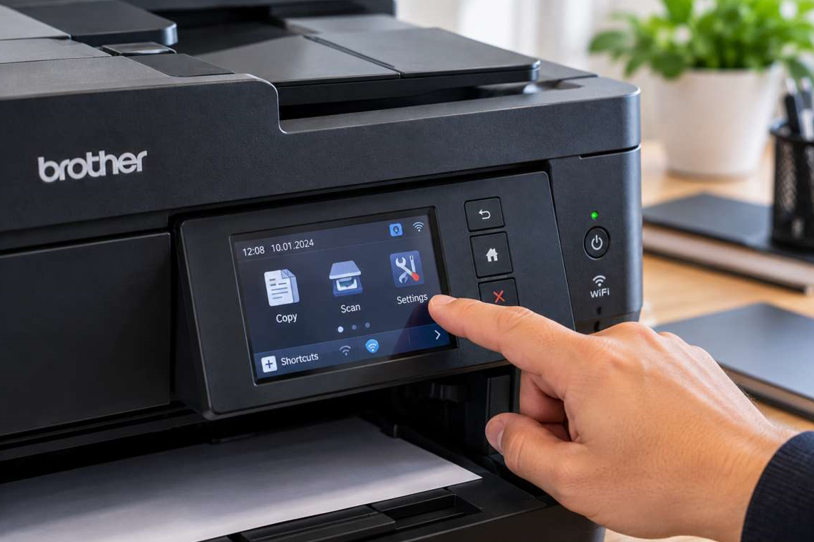
If your printer goes offline after sitting idle, check its settings for power-saving or sleep options. Increasing the sleep timer stops the printer from disconnecting between jobs.
See also: Top 10 Business Uses for UV DTF Stickers
Still Offline? Check the Toner and Hardware
Sometimes a printer that looks offline is really reporting a different problem. Low toner, a badly seated cartridge or a mismatched cartridge can trigger errors that confuse the connection status. Take the cartridge out, check that it’s seated firmly, and look at the toner level. If it’s running low, or you’ve been using a cheap unbranded cartridge, switching to good-quality Brother toner cartridges that match your printer model can prevent many of these errors and keep prints sharp.
How to Stop Your Brother Printer Going Offline Again
- Give the printer a fixed (static) IP address in your router settings so it never changes.
- Keep the printer close to the router, or use an Ethernet cable if you can.
- Update firmware and drivers every few months.
- Avoid switching networks without reconnecting the printer.
- Restart the printer once a week in busy offices.
These small habits take only a few minutes and save a lot of frustration.
When Should You Call a Professional?
If you’ve tried every step above and the printer still shows offline, the fault may be deeper. Signs that it’s time for expert help include:
- The printer won’t connect to any network, or to any computer
- The Wi-Fi light never turns on or keeps blinking
- The control panel freezes or shows unclear error messages
- The printer shuts down or restarts by itself
- You hear unusual noises when the printer starts up
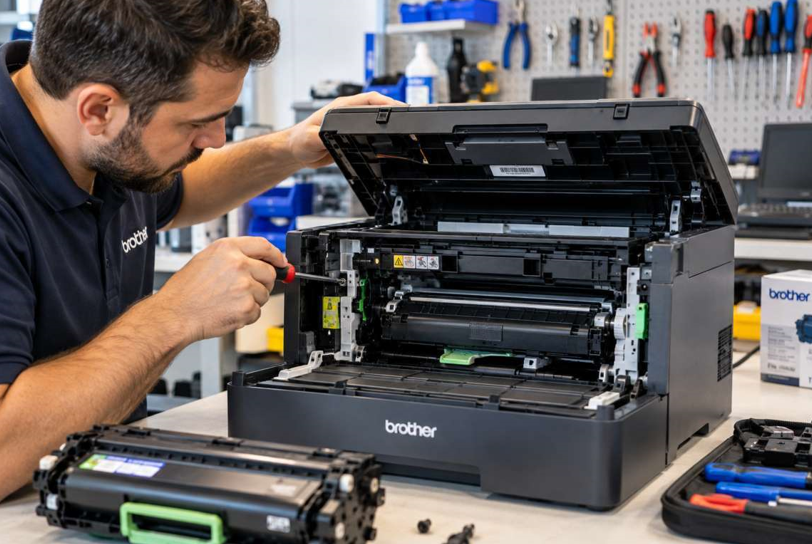
A faulty wireless module or a motherboard fault can’t be fixed with settings alone, and opening the machine yourself can make things worse. This is where a trusted Brother printer repair in Dubai service helps. A technician can test the hardware, find the exact fault and often get you printing again quickly, without the cost of buying a new printer.
Final Thoughts
A Brother printer showing offline is annoying, but it’s usually a communication hiccup rather than a serious failure. Start with the easy checks: restart your devices, confirm the network, clear the queue and update the driver. Most people are back to printing within ten minutes. If the problem keeps coming back or points to a hardware fault, don’t waste hours fighting it. Get professional help and get back to work.
